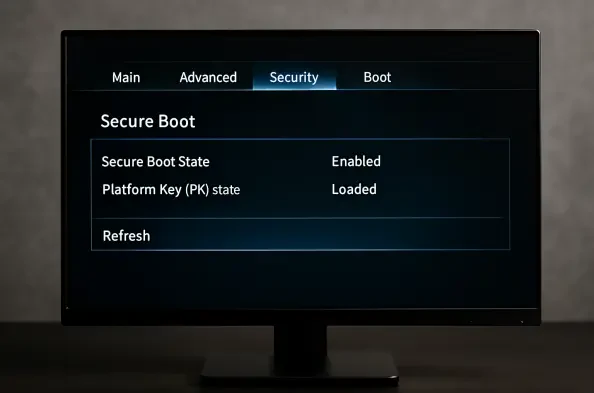
Deep within your computer’s startup sequence, a fundamental security component is undergoing a mandatory evolution, a change that ensures the very foundation of your system’s trust remains intact against emerging threats. This guide provides the necessary steps to verify your system’s readiness for this critical update, ensuring its security and compatibility for years to come.
A Silent Security Shift: What the 2026 Mandate Means for You
A critical, yet largely invisible, security update is now rolling out across the globe as the original digital certificates for Secure Boot are being replaced. This process is essential for maintaining the integrity of the boot process, which protects your computer from malware before the operating system even loads. While this transition is designed to be seamless for the majority of users, a specific subset of systems will fail to update automatically, requiring manual intervention to prevent future security vulnerabilities and compatibility issues.
The primary goal here is to empower every user to quickly identify if their PC is among those at risk and to provide a clear, actionable path forward. By following a few straightforward checks, you can confirm your system’s compliance or take the necessary steps to secure it. This process involves verifying system updates, checking for manufacturer-specific firmware, and understanding the implications of inaction. For most, it will be a simple confirmation; for others, it is a necessary step to safeguard their digital environment.
The Digital Gatekeeper: Understanding Why Secure Boot is Evolving
Secure Boot acts as a digital gatekeeper for your PC. During startup, it meticulously checks the digital signature of each piece of software, from the firmware to the operating system kernel, ensuring that only trusted and unaltered code is allowed to run. This foundational security measure is a first line of defense against sophisticated threats like rootkits, which attempt to infect a computer at its most vulnerable stage.
The original certificates that underpin this trust mechanism were issued in 2011 and have now reached the end of their lifecycle. In alignment with modern cryptographic standards and best practices, retiring them is not just a recommendation but a necessity. Allowing them to persist would create an unacceptable security risk. In response, Microsoft has orchestrated a proactive, phased transition to new, more robust certificates, ensuring the continuity of this essential security feature without disrupting users. This effort has been closely coordinated with device manufacturers (OEMs), who play a pivotal role in preparing system firmware for the change.
Your Action Plan: A Step-by-Step Guide to Verify Readiness
Step 1: Determine if Your System Requires Action
The first step in ensuring your system is prepared for the Secure Boot refresh is to determine whether it falls into the category of devices that will update automatically or those that require manual checks. The vast majority of consumer and enterprise PCs that are configured to receive regular updates from Windows Update will transition without any user involvement. However, systems that are managed outside of standard update protocols or have unique hardware configurations warrant a closer look.
This distinction is crucial because the update’s delivery mechanism relies on a standard software and firmware environment. If your system deviates from this standard, whether due to disabled updates, specialized hardware, or its role as a standalone server, the automated process may fail. Identifying your system’s category now is the key to a smooth and secure transition.
The Seamless Majority: Why Most Users Wont Need to Do a Thing
For most people, this security refresh will happen in the background, much like any other monthly Windows update. Systems receiving regular, automatic updates are the primary target for this seamless deployment. Furthermore, PCs manufactured since 2024 were often shipped with the new certificates already in place, making them compliant from day one.
Microsoft’s update infrastructure is designed to identify eligible systems and deliver the necessary certificate package automatically. If your computer is a modern device running a supported version of Windows with automatic updates enabled, it has likely already received the update or is scheduled to receive it shortly. In these cases, no further action is required, and the system’s foundational security will remain uninterrupted.
Identifying At-Risk Devices: Unmanaged Systems and Specialized Hardware
Certain categories of devices are more likely to miss the automatic update and require direct intervention. These at-risk systems typically include those not managed by a standard IT update process, such as specialized servers in isolated networks, industrial control systems, or Internet of Things (IoT) devices with customized operating systems. Additionally, personal computers where Windows Update has been manually disabled or deferred for long periods are prime candidates for inspection.
If you manage devices that operate offline, run on a long-term servicing channel, or have had their boot configuration manually altered, it is essential to assume they need a manual check. These unmanaged endpoints lack the consistent connection and standard configuration necessary for Microsoft’s automated deployment to succeed, placing the responsibility of ensuring compliance squarely on the system administrator or owner.
Step 2: Check for Essential Firmware Updates from Your Manufacturer
Successfully receiving the new Secure Boot certificates from Microsoft often depends on a preliminary step: updating your PC’s firmware. The system’s firmware, or BIOS/UEFI, is the low-level software that initializes the hardware before the operating system loads. This underlying code must be prepared to accept and validate the new cryptographic signatures. Without a compatible firmware version, the Windows Update package may fail to install correctly.
The responsibility for providing this critical firmware update lies with your device’s original equipment manufacturer (OEM), such as Dell, HP, Lenovo, or your motherboard manufacturer if you have a custom-built PC. The most reliable way to obtain this update is by visiting the official support website for your specific model. There, you can check for the latest firmware or BIOS releases, which will often list compatibility with the Secure Boot 2026 update in their release notes.
The Crucial Role of OEM Firmware
Think of the OEM firmware as the foundation upon which Secure Boot is built. Microsoft delivers the new certificates (the “keys”) via Windows Update, but the firmware (the “lock”) must be able to recognize them. If the firmware is outdated, it may not have the necessary logic to process the new cryptographic standards, effectively rejecting the update from Microsoft.
This dependency highlights the critical partnership between Microsoft and its hardware partners. Device manufacturers have been working to release updated firmware versions to prepare their hardware for this transition. Installing the latest firmware from your OEM is therefore not just a best practice for general system stability; it is a prerequisite for ensuring your device remains compliant with the latest boot security standards.
A Critical Note for Windows 10 Users
Users running devices on Windows 10 must pay special attention to their operating system’s support status. The new Secure Boot certificates will only be delivered to supported versions of Windows. If your device is running a version of Windows 10 that has reached its end-of-service date, it will not receive this critical security update.
The only exception is for organizations enrolled in the Extended Security Updates (ESU) program, which provides continued security patches for a fee after the official support lifecycle ends. For all other unsupported Windows 10 systems, the path to compliance requires upgrading to a supported version of the operating system, such as Windows 11 or a newer, in-support build of Windows 10. Without this, the system will be ineligible for the certificate refresh.
Step 3: Understand the Consequences of Inaction
Failing to update your system before the old certificates are fully retired will not cause your PC to stop working overnight. The device will still boot and function. However, its security posture will be permanently degraded. The primary risk is that the system will be left vulnerable to future boot-level threats, as it will be unable to install any new security mitigations that rely on the updated Secure Boot chain of trust.
This creates a significant and growing security deficit. While your current antivirus software will continue to operate, the very foundation of the system’s startup process will be frozen in time, unable to adapt to new attack vectors. This inaction effectively leaves a critical door unlocked, and over time, the likelihood of an exploit targeting that vulnerability increases substantially.
The Long-Term Vulnerability Gap
An un-updated system becomes increasingly exposed as the threat landscape evolves. New forms of malware, particularly rootkits and bootkits designed to compromise a system before security software can load, will be developed. Future security patches and enhancements from Microsoft designed to counter these threats will depend on the new certificate infrastructure.
A device that misses the refresh will be unable to apply these updates, creating a permanent vulnerability gap. It becomes a lagging target, stuck with a security framework from over a decade ago while the rest of the digital world moves on. This gap makes the system a progressively easier target for attackers as time passes.
Future Compatibility and Performance Issues
Beyond the direct security implications, failing to update can lead to future compatibility problems. New software, drivers, and even hardware peripherals may eventually require a fully updated Secure Boot configuration to install or function correctly. Developers and manufacturers are building their products with the assumption that systems are compliant with current security standards.
An outdated Secure Boot configuration could cause installation failures for new operating system versions, specialized enterprise software, or high-security applications. In a worst-case scenario, you might find that a critical piece of hardware or a necessary software upgrade refuses to work, forcing a reactive and potentially disruptive update process down the line.
Quick Readiness Checklist: Key Actions in Summary
- Enable Automatic Updates: Ensure your PC is set to receive and install updates from Windows Update. This is the primary delivery mechanism for the new certificates and the easiest way to stay compliant.
- Visit Your OEM’s Website: Check your device manufacturer’s support page for the latest firmware or BIOS updates. This is a critical prerequisite for many systems to accept the new certificates.
- Install All Updates: Apply both the required firmware updates from your OEM and all pending Windows updates. A fully patched system is a fully prepared system.
- Verify Your OS Support: Confirm you are running a supported version of Windows that is eligible for the new certificates. If you are on an older, unsupported version, plan an upgrade.
The Bigger Picture: Security Modernization and the Unmanaged Device Challenge
This Secure Boot refresh is a clear example of a broader industry trend toward continuous security modernization. The practice of retiring old cryptographic standards and replacing them with stronger, more resilient ones is fundamental to staying ahead of adversaries. This initiative reinforces the principle that security is not a one-time setup but an ongoing process of adaptation and improvement.
However, this necessary evolution also casts a spotlight on a persistent challenge for IT administrators and individuals alike: the unmanaged or legacy device. Systems that operate outside of regular maintenance cycles, whether by design or neglect, are at high risk of falling through the cracks during such transitions. This event serves as a reminder of the importance of comprehensive asset management and consistent update policies to ensure no device is left behind and becomes a weak link in the security chain.
Your Final Step: Secure Your PCs Future Today
The core message of this transition was that proactive verification provided complete peace of mind. By taking a few moments to check for firmware and Windows updates, users ensured their systems were aligned with the latest security standards, effectively preventing future headaches. The process was automatic for most, but the simple act of confirming that status was a valuable and responsible step.
Ultimately, those who took the time to check their system’s readiness secured its foundation for the foreseeable future. They addressed the mandate head-on, ensuring their devices would not only be protected from current and future boot-level threats but also remain compatible with the next generation of software and hardware. This small investment of time paid significant dividends in long-term security and stability.