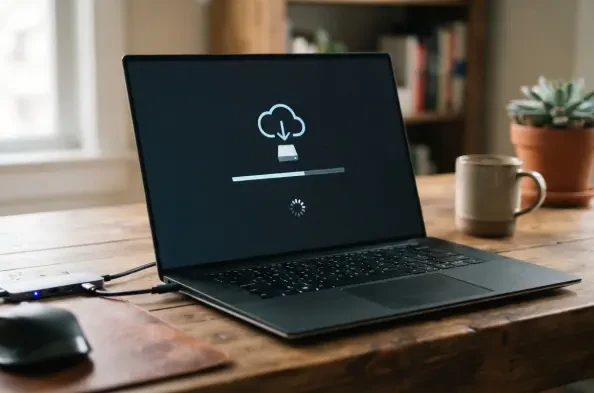
The October 2026 non-security update, designated as KB5127936, introduces a powerful capability to reinstall Windows 11 even when the operating system fails to boot. This significant enhancement provides a streamlined alternative to the traditional, labor-intensive process of creating physical bootable media on a secondary machine. By leveraging a direct connection to Microsoft’s cloud infrastructure, the system can now fetch a pristine version of the operating system and necessary drivers directly from Windows Update. This shift not only simplifies recovery for home users but also offers a robust tool for IT professionals tasked with maintaining system integrity across diverse hardware environments. The utility is specifically designed to address scenarios where local recovery partitions may be corrupted or insufficient, providing a reliable path back to a functional state. While older methods required a high level of expertise, this cloud-native approach democratizes system repair by embedding the recovery logic into the pre-boot environment.
1. Mandatory Prerequisites and Connectivity Requirements
To successfully utilize the Cloud Rebuild feature, the host system must meet several critical technical standards to ensure the process completes without interruption. Chief among these is the presence of the October 2026 update or a later iteration, as the underlying architecture for cloud-sourced recovery was only finalized in this release cycle. Furthermore, a stable and high-speed internet connection via either Ethernet or Wi-Fi is non-negotiable, given that the tool downloads several gigabytes of system files in real time. Power management is another vital factor; the operating system requires the device to be connected to a dedicated power source throughout the duration of the installation. Microsoft emphasizes that any sudden loss of power during the download or sanitization phase could result in a non-bootable state, necessitating physical recovery media. Consequently, verifying the reliability of both the network and the power supply is the first essential step before initiating the rebuild to avoid complicating an already fragile system state.
A thorough understanding of the data impact is equally important, as Cloud Rebuild is fundamentally a destructive process regarding local storage. Unlike the standard “Reset this PC” function, which offers a toggle to preserve user files, this cloud-based alternative performs a comprehensive wipe of all personal documents, local accounts, and customized system configurations. It is crucial to note that while files synchronized with OneDrive or other cloud-based services remain safely stored in the cloud, any data existing solely on the local drive will be permanently erased. This design choice ensures that the resulting environment is entirely fresh and free from any legacy software conflicts or malware that might have persisted through a less rigorous reset. Therefore, users must verify that their synchronization settings are current or that they have performed a manual backup of critical local data to an external drive. This total cleanup is particularly effective for those looking to return their device to a factory-like condition before a hardware transition.
2. Operational Steps and Troubleshooting Guidance
Initiating the process depends on whether the system is currently operational or trapped in a boot loop. If the desktop environment is accessible, navigation begins within the Settings menu under the System and Recovery sections, where the “Rebuild PC” button is now a prominent option. Conversely, if the machine fails to start, the Windows Recovery Environment provides a pathway through the Troubleshoot menu to locate the Cloud Rebuild command. Once the process starts, users are presented with a choice between “Remove files” for a standard cleanup or “Remove & sanitize” for a more secure data destruction. The sanitization option is highly recommended when decommissioning a device, as it triggers a hardware-level erase command that makes data recovery nearly impossible for third parties. After selecting the target drives and confirming the “Sanitize and install” command, the PC begins its automated cycle of downloading, cleaning, and reinstalling, eventually leading to the setup screen where the device can be configured as a brand-new system.
The implementation of this feature successfully reduced the dependency on physical media, though certain technical obstacles were observed during its rollout. Users encountered Error 0x800704C6 when network configurations blocked access to the internet, requiring a verification of the Wi-Fi or Ethernet connection. Error 0xc1900200 frequently pointed toward a disabled TPM, necessitating an entry into the BIOS to enable PTT or fTPM settings. In cases where specific, proprietary drivers were missing—signified by Error 0xc1900224—it was determined that manufacturer-provided media remained the only viable solution. To maximize the utility of these tools, it was advised to ensure that security hardware was active well in advance of any system failure. Moving forward, the most effective strategy involved treating Cloud Rebuild as the primary recovery tier while maintaining a secondary physical backup for legacy hardware. This approach provided a clear path for users to manage devices without traditional logistical overhead.