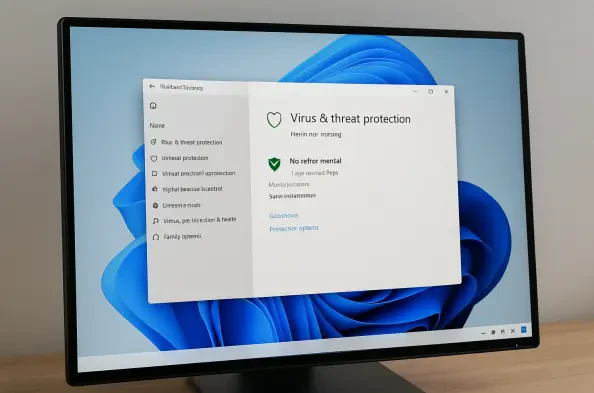
While Microsoft Defender Antivirus stands as a formidable and deeply integrated security solution for Windows 11, providing robust, real-time protection at no extra cost, there are specific, legitimate scenarios where its constant vigilance can become a temporary obstacle. For developers compiling large-scale applications, security researchers conducting penetration tests in isolated environments, or IT administrators troubleshooting complex software conflicts, the need to temporarily suspend or permanently deactivate this built-in guardian is a practical reality. These situations demand a careful, methodical approach, as disabling the primary line of defense, even for a short time, opens the system to potential threats. It’s not a matter of simply flipping a switch; it requires an understanding of the underlying system protections, the distinction between temporary and permanent changes, and the inherent risks involved. Navigating this process correctly ensures that the system remains secure and stable while accommodating specialized tasks that Defender might otherwise interrupt. The following methods provide a clear roadmap for safely managing Defender’s status, tailored to different needs and Windows 11 editions.
1. Essential Precautions and Preliminary Steps
Before attempting to alter any security settings, it is paramount to prepare the system for potential issues and understand the full implications of the changes being made. The first and most critical step is to create a System Restore Point. This simple action provides a safety net, allowing the system to be rolled back to its current state if any modifications lead to instability or unintended consequences. Equally important is backing up all critical files to an external drive or a secure cloud storage service, as disabling antivirus protection inherently increases the risk of data loss from a malware infection. For tasks that require Defender to be disabled, such as testing potentially flagged software, physically disconnecting the computer from the internet can provide an essential layer of isolation, preventing any external threats from reaching the vulnerable system. It is also crucial to identify the specific edition of Windows 11 being used, as methods involving the Local Group Policy Editor are exclusive to Pro, Enterprise, and Education editions, leaving Windows 11 Home users with more limited options. Finally, one must contend with Tamper Protection, a feature designed specifically to prevent unauthorized changes to Defender’s settings. For any permanent disabling method to succeed, Tamper Protection must first be manually deactivated within the Windows Security application, as it will otherwise silently block any policy or registry changes.
2. Temporarily Pausing Real Time Protection
For short-term needs, such as installing a trusted application that is being incorrectly flagged as a false positive, the most straightforward and safest method is to temporarily disable real-time protection through the Windows Security interface. This approach is non-permanent by design; Windows 11 will automatically re-enable real-time protection after the next system restart or even after a short period of inactivity to ensure the system does not remain unprotected indefinitely. To perform this action, begin by opening the Start menu and searching for “Windows Security.” Once the application is open, navigate to the “Virus & threat protection” section from the left-hand panel. Under the “Virus & threat protection settings” heading, click the “Manage settings” link. This will open a new screen where the “Real-time protection” toggle is located. Switching this toggle to the “Off” position will trigger a User Account Control (UAC) prompt, which requires confirmation to proceed. Once confirmed, a notification will appear, indicating that protection is off. While on this screen, there are also options to disable other related features if necessary, such as “Cloud-delivered protection” and “Automatic sample submission,” which can be useful in highly controlled testing environments to prevent data from being sent to Microsoft. This method provides a quick and easily reversible solution for temporary tasks without requiring deep system modifications.
3. Implementing a Permanent Disable via Group Policy
For users of Windows 11 Pro, Enterprise, or Education editions who require a more persistent solution, the Local Group Policy Editor offers a powerful method to permanently turn off Microsoft Defender Antivirus. Unlike the temporary toggle in Windows Security, a change made here will survive system restarts and remain in effect until it is manually reversed. Before proceeding, it is absolutely essential to first disable Tamper Protection from the Windows Security app, as failing to do so will cause Windows to ignore the policy change. Once Tamper Protection is off, open the Run dialog box by pressing the Windows key + R, type gpedit.msc, and press Enter. In the Local Group Policy Editor window, use the navigation pane on the left to browse to the following path: Computer Configuration > Administrative Templates > Windows Components > Microsoft Defender Antivirus. In the right-hand pane, locate and double-click the policy setting named “Turn off Microsoft Defender Antivirus.” In the configuration window that appears, select the “Enabled” option, then click “Apply” and “OK” to save the change. A system restart is required for this policy to fully take effect. After rebooting, Microsoft Defender will be disabled, ceasing all real-time protection and scheduled scans. It is critical to only use this method if a reliable third-party antivirus solution is ready to be installed or if the machine is being used in a completely isolated, offline environment.
4. An Automated Solution Through Third Party Antivirus Installation
The simplest and most universally effective method for permanently disabling Microsoft Defender on any edition of Windows 11, including Home, is to install a reputable third-party antivirus application. The Windows operating system is intelligently designed to prevent conflicts that can arise from running two real-time antivirus engines simultaneously. When a new, compatible antivirus product is installed and registers itself with the Windows Security Center, Windows 11 automatically deactivates Microsoft Defender’s real-time protection component, placing it into a passive mode. In this mode, Defender will not actively scan files or monitor system behavior, ceding those responsibilities to the newly installed software. The process is straightforward: select a trusted antivirus solution from a known vendor, download the installer directly from the official website to avoid bundled adware or malware, and run the installation package. The installer will typically handle the entire process of registering the new software and ensuring Defender steps aside. After a potential system restart, you can verify the change by opening the Windows Security app, where a status message will confirm that the third-party antivirus is active and managing the system’s protection. For users who want an extra layer of security, Windows offers an optional feature called “Periodic Scanning,” which allows the passive Microsoft Defender to run occasional scans for threats that the primary antivirus might have missed, without causing any performance conflicts.
5. Navigating Security After Disabling Defender
Having successfully disabled Microsoft Defender, the responsibility for system security shifted entirely to the user or the alternative protection software installed. This new state required ongoing vigilance, as the system’s default safety net had been removed. It was crucial to understand that major Windows feature updates could, at times, reset system policies and potentially re-enable Defender to ensure a baseline level of security across all devices. Therefore, after any significant system update, it became a necessary routine to verify that the desired security configuration—whether it was a third-party antivirus running as the primary or Defender remaining disabled—was still in effect. For those operating without any real-time protection in a controlled environment, safe computing practices became non-negotiable. This included exercising extreme caution when downloading files, avoiding suspicious websites, and being wary of phishing attempts in emails. The choice to disable a core security feature was not a one-time decision but a continuous commitment to managing the system’s integrity actively. The digital landscape is always evolving, and maintaining a secure system without its built-in defender demanded a proactive and informed approach to cybersecurity.