Maintaining a high level of digital hygiene on a modern Windows computer requires a sophisticated understanding of how integrated security layers interact to neutralize evolving cyber threats efficiently. In the current landscape, malware has reached a level of complexity where simple background monitoring may no longer suffice for complete system assurance. To ensure the integrity of a Windows environment, users must adopt a proactive stance that leverages the full breadth of built-in defensive mechanisms alongside specialized external validation tools. The process begins with a fundamental understanding of how the integrated security dashboard operates as a central hub for monitoring system health and neutralizing potential hazards before they can establish persistence. While automated background protection remains a critical first line of defense, manual intervention and periodic deep-dive assessments are essential for identifying dormant or highly evasive malware strains. By following a structured approach to system scanning, individuals can maintain a robust security posture that effectively mitigates risks associated with data breaches, system instability, and unauthorized access to sensitive information in this era.
1. Initial Security Assessment and Update Protocols
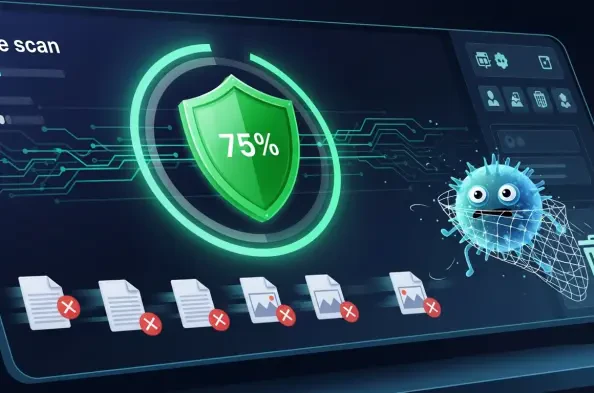
The initial stage of any comprehensive security audit involves triggering a standard assessment to identify immediate risks that may be actively compromising system performance or data integrity. Users should begin by launching the Windows Security interface and navigating directly to the virus and threat protection section to locate the current threats category. Selecting a quick scan provides an efficient overview of high-risk directories and memory resident processes, serving as the fastest method for surfacing obvious issues on contemporary Windows systems. Once this baseline check concludes, it is vital to inspect the protection history for any flagged items that may have been automatically quarantined or blocked. Furthermore, users must verify that the intended primary antivirus provider is currently operational by checking the manage providers sub-section. If a third-party security suite is present, Microsoft Defender typically remains in a secondary state, meaning active monitoring will only resume once conflicting software is removed. Ensuring that real-time protection is toggled on within the settings menu remains a non-negotiable step for continuous safety.
Scanning efficacy is fundamentally dependent on the currency of the intelligence used to identify modern threats, making a manual refresh of security definitions a critical prerequisite for a thorough examination. Before proceeding with more intensive scanning options, one should access the protection updates menu within the security dashboard to manually trigger a check for the latest signatures and heuristic patterns. Even though Windows typically manages these updates automatically in the background, a manual check ensures that the very latest data from the global threat intelligence network is active on the local machine. This is particularly important when dealing with zero-day vulnerabilities or rapidly spreading malware variants that may have emerged in the hours preceding the scan. After the update process completes and confirms that the system is running the most recent security intelligence, the interface provides a stable foundation for more granular and time-consuming diagnostic procedures. Staying within the application during this process allows for a seamless transition into the more detailed scanning phases required for deep system verification.
2. Advanced Diagnostic Procedures and Remediation
When a quick assessment fails to yield results or if there is a specific suspicion of deep-seated infection, a full system scan becomes necessary to inspect every file and directory on the storage drives. This intensive process can be initiated through the scan options menu, where users select the full scan mode to perform a bit-by-bit analysis of all system components, including compressed archives and rarely accessed system folders. For those who suspect a specific drive or a newly connected external storage device might be compromised, the custom scan feature allows for targeted analysis of specific file paths or hardware volumes. Additionally, a more localized approach can be taken directly through the File Explorer interface by right-clicking a specific file or folder, expanding the context menu to show more options, and choosing the dedicated scan function. This flexibility ensures that users can focus their defensive resources on the most probable locations of infection while maintaining overall system performance during the diagnostic window. It is important to remember that thorough scanning is a foundational element of maintaining hardware longevity and data privacy.
Persistent malware strains that integrate themselves into the boot sector or hide within the kernel require a specialized approach that bypasses the active Windows operating environment entirely. The Microsoft Defender offline scan provides this capability by restarting the computer into a secure, isolated recovery mode where the antivirus engine can operate without interference from active malicious processes. To utilize this tool, users must save all active work and close open applications, as the system will immediately initiate a reboot sequence upon selection. This method is particularly effective for removing rootkits or other highly resilient threats that might successfully conceal themselves from the standard real-time monitoring service while Windows is running. After the offline scanning engine completes its thorough analysis and attempts remediation, the computer will automatically restart back into the standard user environment. Findings from this deep-level procedure are recorded and can be subsequently reviewed in the protection history logs to ensure that all identified threats were successfully neutralized or quarantined.
3. Post-Analysis Evaluation and Long-Term Maintenance
Once the various scanning procedures have concluded, the next logical phase involves a detailed review of the protection history to understand the nature and severity of any detected anomalies. This log provides a chronological record of security events, including items that have been moved to quarantine to prevent them from executing or spreading further throughout the local network. It is important to remember that these records and the associated quarantined files are typically purged automatically after a fourteen-day period, so immediate review is necessary to make informed decisions about restoration or deletion. If certain files appear suspicious but are not definitively flagged, leveraging external resources like VirusTotal can provide a broader perspective by comparing the file hash against dozens of industry-leading security engines. However, users should exercise caution by searching for unique file identifiers rather than uploading sensitive private documents to these public repositories. For a secondary manual check, the Microsoft Safety Scanner can be downloaded as a standalone tool that remains valid for ten days to provide a one-time, comprehensive verification.
Maintaining a modern security posture also involves discarding obsolete tools and methodologies that no longer provide value or have been officially retired from the digital landscape. As of the current year, traditional recommendations such as the Chrome Cleanup Tool or the Norton Power Eraser should be avoided, as these specialized utilities have been discontinued or replaced by more integrated system features. While modern web browsers like Google Chrome continue to offer a safety check functionality within their internal settings, this feature is strictly limited to browser-specific issues such as malicious extensions or compromised passwords and does not scan the local file system for viruses. Relying on such narrow tools for whole-system security would create a false sense of protection and leave critical vulnerabilities unaddressed. Furthermore, the Malicious Software Removal Tool remains a viable component of the standard update cycle, specifically targeting high-prevalence threats that have been identified by global telemetry. By focusing on currently supported and regularly updated utilities, users ensure their defensive strategy remains aligned with the actual threat landscape.
4. Strategic Implementation of Continuous Safety
The implementation of a structured scanning routine successfully addressed the complex requirements of maintaining a secure Windows environment against modern cyber threats. By prioritizing integrated security features and ensuring that all definitions were updated to the latest standards, a solid foundation for system integrity was established. The use of both quick and deep-level scanning options allowed for a comprehensive assessment that identified both common hazards and more elusive persistence mechanisms. Furthermore, the inclusion of offline scanning and external verification tools provided the necessary depth to handle specialized malware that attempted to evade standard detection. Moving forward, the most effective path involves the automation of these defensive processes while maintaining a schedule for manual reviews of protection logs and system health reports. Consistency in monitoring and the avoidance of deprecated security tools ensured that the digital workspace remained shielded from evolving risks while maximizing performance. Adopting these refined practices transformed the abstract concept of cybersecurity into a practical, repeatable workflow.
Beyond immediate scanning procedures, the adoption of advanced heuristic monitoring and cloud-based protection settings proved to be essential for intercepting emerging threats in real-time. By configuring the security dashboard to utilize cloud-delivered protection, the system gained access to rapid intelligence updates that were derived from millions of global endpoints. This collaborative approach significantly reduced the window of vulnerability between the emergence of a new threat and the deployment of a local countermeasure. Additionally, regular audits of application permissions and background services complemented the scanning process by reducing the overall attack surface available to malicious actors. Users who maintained this proactive stance found that their systems operated with greater reliability and fewer interruptions caused by unexpected security incidents. The transition from reactive cleaning to proactive management represented a significant evolution in personal computing safety. Ultimately, the combination of robust internal tools and a disciplined approach to maintenance provided the most reliable protection against the diverse and persistent cyber challenges encountered in the modern era.